Small-canvas focus
Work at icon and sprite scale, where every block of color is easy to see and adjust.
Browser-made square avatars
Use this browser-based pixel art generator to make retro icons, sprites, and lightweight pixel artwork without signing up.
Launch the classic generator, make a face, then use it anywhere a square icon fits.


Generator
Open the pixel editor, draw with a small grid, then save your retro icon or sprite when it is ready.
If the tool does not appear, refresh the page or try a current desktop browser.
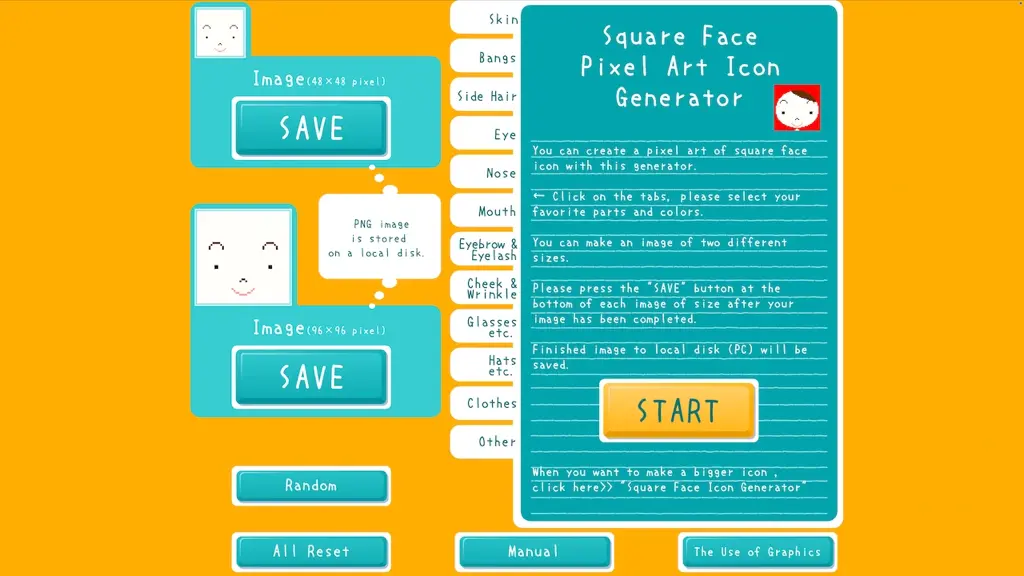
Preparing the pixel art maker...
Why this tool works
Fast enough for a quick profile refresh, focused enough for GitHub avatars, and still faithful to the classic generator.
Work at icon and sprite scale, where every block of color is easy to see and adjust.
Start drawing immediately without creating an account or setting up a design workspace.
Pixel Art Generator lets you create a compact piece of pixel art, save it, and test it in your game, profile, or project page.
Three steps
Start Pixel Art Generator directly on the page, no install required.
Place colors on the grid and adjust the shape until the icon or sprite reads clearly.
Use the save option when you are done, then preview the image wherever you plan to use it.
Use cases
Use Pixel Art Generator to sketch small characters, pickups, or props before refining them in a larger asset pipeline.
Make compact icons for personal sites, project dashboards, or profile pages.
Try simple expressive shapes that can later become stickers, emotes, or badges.
Use a small grid to practice color blocking, silhouettes, and readable pixel shapes.
Context
Pixel Art Generator is a browser-based tool for small retro images such as icons, sprites, and simple decorative graphics. It keeps the workflow narrow on purpose: a small grid, a limited palette, and a save action. That is enough to draft an idea and move on without launching a full design suite, opening a new file, or learning a new interface for a five-minute sketch.
Small pixel images live or die on silhouette and color contrast. The tool is most useful when you want to test a shape, save it, and judge whether it is worth refining further. A draft inside the pixel art maker can become a favicon, an emoji-style sticker, a placeholder game sprite, or a simple character pose for a prototype. If the silhouette reads at thumbnail size, the rest is mostly polish.
Inside Pixel Art Generator, a 16 by 16 or 32 by 32 grid is enough for most icons; for compact sprites, 32 by 32 to 64 by 64 leaves room for a face, hands, and a hint of clothing. Limit yourself to four or five colors at first, including the background. A tight palette forces strong contrast, which is what makes pixel art readable when it is shrunk into a profile slot, a button, or a mini-map. You can always expand the palette later when the shape is locked.
Pixel art rewards bold shapes and constrained color, not photographic detail. If you need a realistic portrait, a high-resolution illustration, or a vector mark that scales to a billboard, a different tool will serve you better. Pixel Art Generator is most at home where pixels are a feature: small UI icons, retro game sprites, profile badges, low-fidelity prototypes, and personal artwork that leans into the medium instead of trying to hide it.
FAQ
You can make small retro icons, simple sprites, profile graphics, badges, and practice pieces. The tool is best for compact artwork where a clear silhouette matters.
No. Pixel art is a good format for beginners because you can build an image one block at a time. Start with a simple outline, then add a few colors for contrast.
Yes. You can open the page and begin drawing without creating an account. That makes it useful for quick experiments, practice, and small project assets.
Yes, especially for drafts, prototypes, and small 2D projects. After saving the image, test it against your game background to make sure the shape and colors remain readable.
Refresh the page and try a current desktop browser. If you use strict content blockers, temporarily disabling them for this page may help the maker appear.
Inside Pixel Art Generator, use a limited palette, keep the outline simple, and check the image at the size where people will actually see it. Strong contrast usually matters more than tiny details.
In Pixel Art Generator, a 16 by 16 or 32 by 32 grid covers most icons, while 32 by 32 to 64 by 64 leaves enough room for a sprite with a face and a few accessories. Start with four or five colors including the background; tight palettes force the strong contrast that keeps pixel art readable at thumbnail size.
Yes. Save the image from Pixel Art Generator, open it in any image editor, and resize it to 32 by 32 or 16 by 16 pixels with nearest-neighbor scaling so the blocks stay crisp. Test the result in a real browser tab because favicons render very differently from the original canvas.